
Autodesk® Revit® Plugin · AIQS SMM Compliant
BIM QTO that keeps pace with design changes
Extract quantities directly from your Revit model. Follow PQS practice in estimating, cost planning and BQ preparation. You decide how quantities are extracted and what BQ format to export.
90%
QTO time saved
30
Day free trial
Revision updates
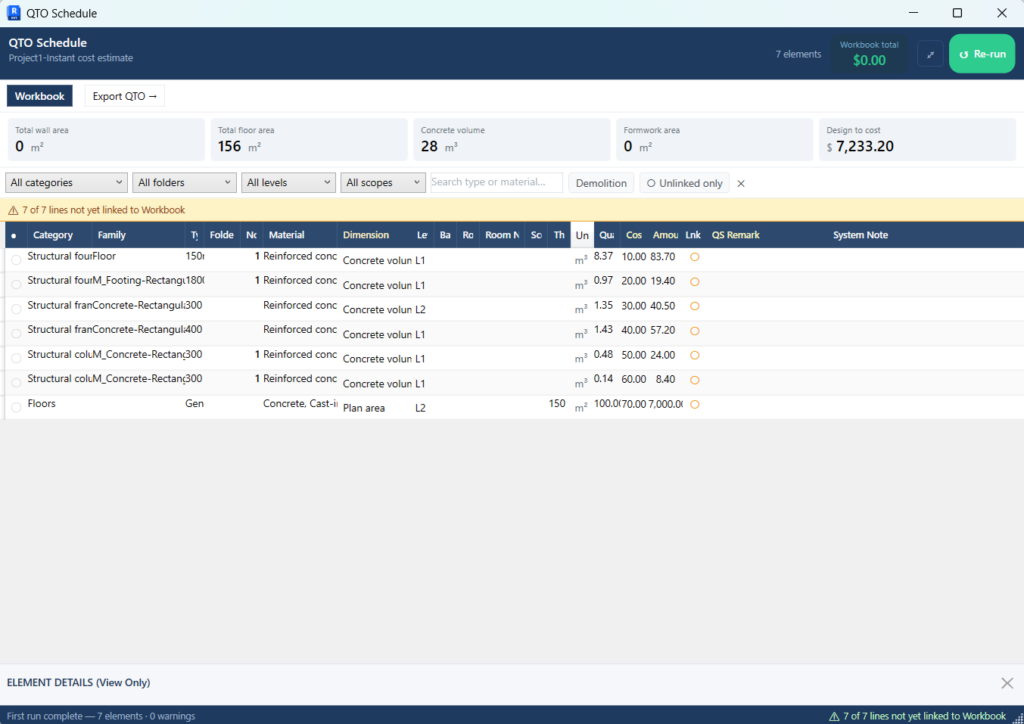
QTO Schedule · Project1.rvt
CategoryType / materialQtyUnitLnk
WallsBasic Wall · Brick 215mm17.50
PaintingDulux Weathershield17.50
Finishes19mm Cement sand plaster17.50
ManualPick & Choose · nr0.00nr
✓ 3 linked · 1 orphan warning — element deleted from model
Built for
Autodesk® Revit®
Autodesk Authorized Developer
AIQS Standard Method of Measurement
Free 30-day trial
Download QSKing — no credit card required
Enter your email and receive your download link instantly. Full access to all features for 30 days.
Works with Autodesk Revit 2024
AIQS SMM compliant extraction
Full Workbook BQ authoring
Unlimited revisions during trial
Get your free download link
You will receive your download link shortly after subscribing.

* indicates required
Thank you for subscribing!
You will receive your download link shortly.
* Required field. Unsubscribe at any time.
Powered by Mailchimp
Why QSKing
The only tool that closes the loop inside Revit
Every other tool is either a model viewer or a standalone BQ authoring tool. QSKing is the only product where the QS extracts, authors the BQ, and manages revisions — without leaving Revit.
Instant quantities and cost update
Non-modelled items — excavation, formwork, rebar — auto-calculated from element geometry. Re-run QTO when design changes. Delta engine identifies every modification instantly.
Learn more
SMM-intelligent extraction
AIQS SMM rules applied automatically — 0.5 m² opening threshold, AS3610 formwork class, excavation staging, rebar weight conversion. Output is compliant quantities, not raw numbers.
Learn more
QS authoring control
Set External Finish, Set Paint, Set Formwork Type, Pick & Choose — override the model where it doesn’t reflect construction reality. No other Revit-native tool gives the QS this control.
Learn more
Revision tracking built in
Delta engine identifies exactly what changed, updates linked quantities automatically, and flags deleted elements with an orphan warning. A revision that takes a day takes an hour.
Learn more
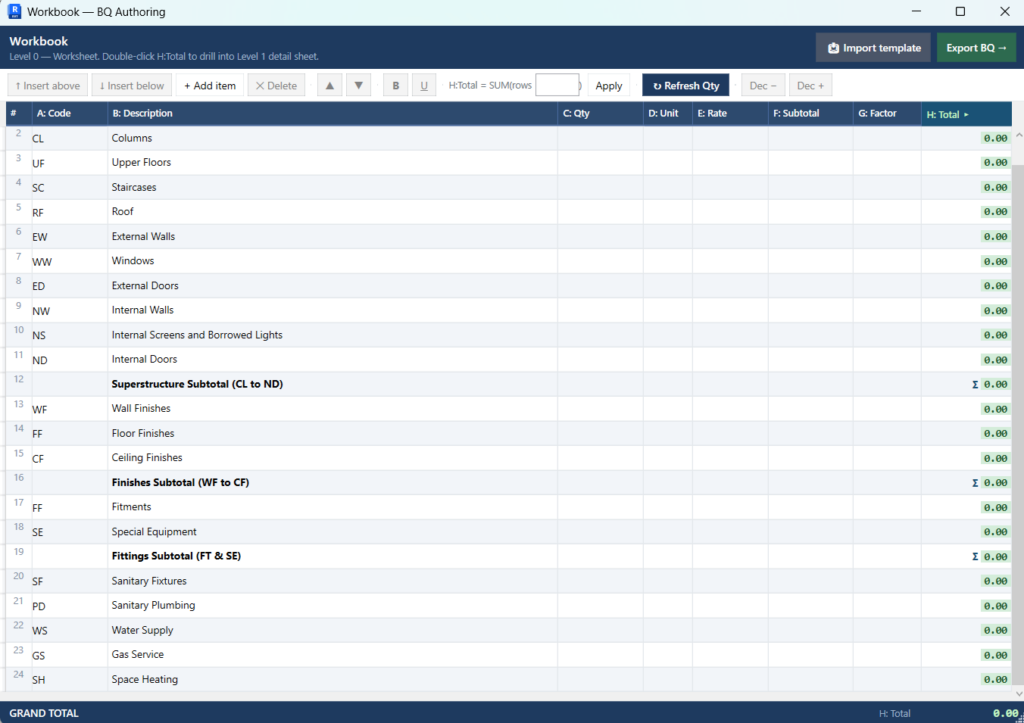
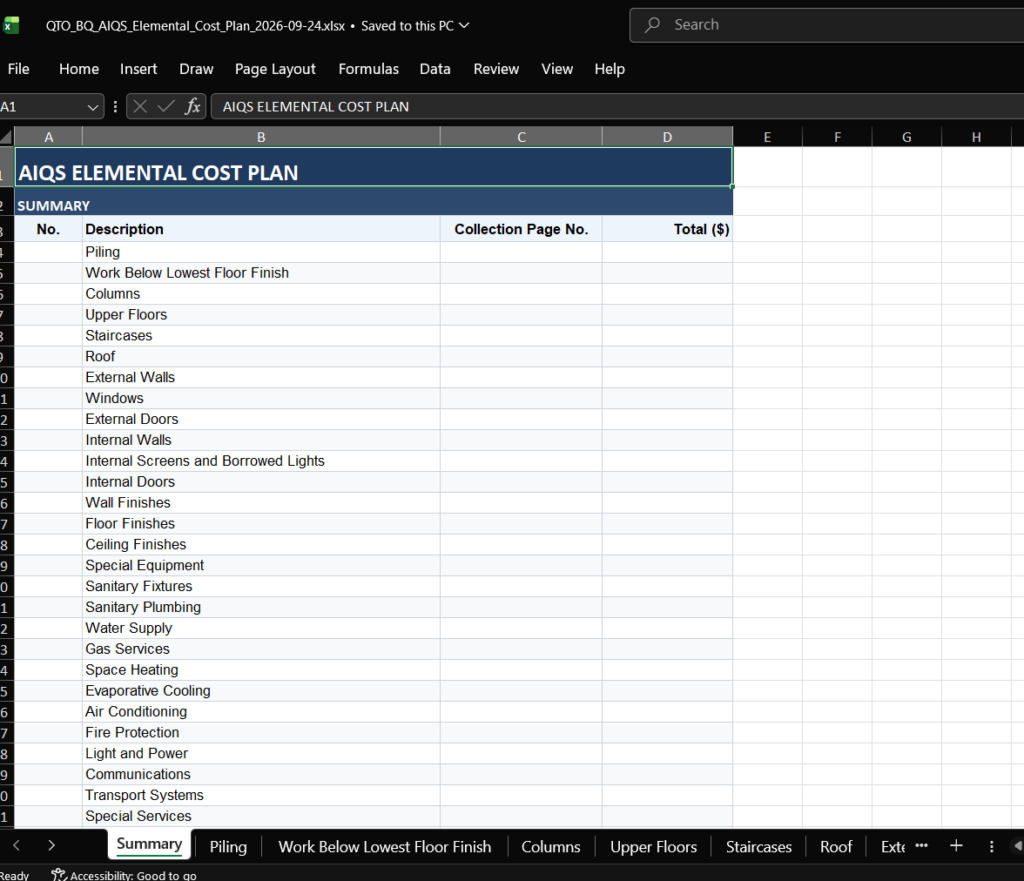
Three-level Workbook BQ
Level 0 trade sections, Level 1 measurement items, Level 2 take-off detail. Link QTO rows to BQ items. Export to Excel in AIQS SMM trade order.
Learn more
Auto openings adjustment
Revit auto-deducts openings from wall face area. QSKing applies the AIQS 0.5 m² threshold rule automatically. No manual deduction. No reconciliation.
Learn more
Workflow
From model to BQ in four steps
Run QTO once. Link quantities to the Workbook. Author the BQ. Export. When design changes, re-run — the delta does the rest.
1
Run QTO
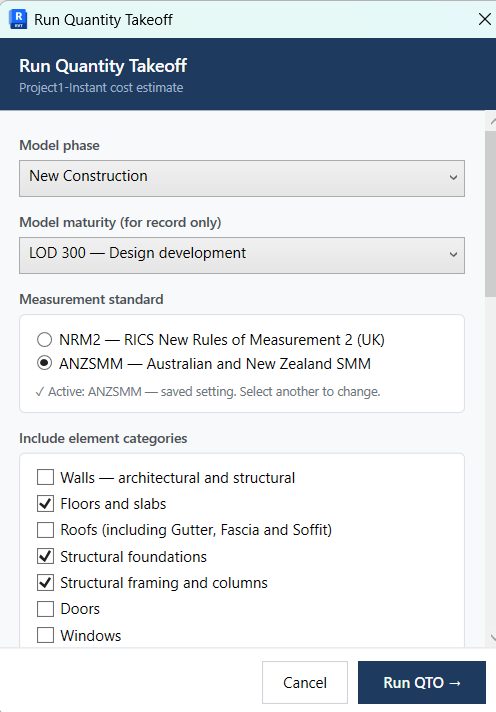
Configure extraction options. Quantities appear in QTO Schedule instantly from Revit geometry.
2
Link to Workbook
Double-click a BQ item’s Qty cell. Select QTO rows. Click Link. Quantity transferred.
3
Author the BQ
Add descriptions, rates, provisional sums and Pick & Choose items. Totals calculate automatically.
4
Export and revise
Export BQ to Excel. Re-run QTO on design changes. Delta updates linked quantities.
Comparison
QSKing vs the alternatives
No other tool closes the full QTO loop inside Revit — from SMM-intelligent extraction through BQ authoring to revision tracking.
Capability QSKing Revit Schedules 2D/3D Manual Onscreen Assemble
Extracts from native Revit model
SMM-compliant measurement rulesManual
Auto excavation staging
Auto formwork from geometry
Auto openings adjustment
BQ authoring inside Revit
Revision delta engineRe-measure manuallyPartial
Orphan warnings on element deletion
Export BQ to Excel (AIQS format)
Accessible pricing for sole QS practiceLicence requiredEnterprise
SMM compliance
Built on measurement rules, not just geometry
Every extraction is governed by AIQS SMM rules. QSKing applies them automatically — the QS overrides where professional judgement is needed.
AIQS SMM · Excavation E1–E5
Excavation staging
Measured in m³ in successive 1 m depth bands from commencing level. QSKing reads the RL set by the QS and stages volume automatically — no manual calculation.
AIQS SMM · Formwork F1–F12
AS3610 finish classification
Formwork calculated from concrete element geometry. Classified F1–F5 per AS3610. Sides of columns, soffit of slabs and soffit of beams measured separately.
AIQS SMM · Walls W1
Auto openings adjustment
Wall areas net of openings exceeding 0.5 m². Openings ≤ 0.5 m² not deducted and not measured separately. Revit geometry enforces this automatically on re-run.
AIQS SMM · Painting P1–P8
Set Paint workflow
QS assigns paint specification element by element. Painted area extracted from Revit face geometry. Internal and external measured separately. Orphan flag on element deletion.
Turned a 3-day revision into 2 hours. The delta engine found every change — I just reviewed and re-exported.
Professional Quantity Surveyor · Commercial project, Australia
FAQ
Common questions
Revit is a design tool — why use it for QTO?
Revit holds complete geometry for every element. Read-only formats (IFC, DWF) lose parametric data. Working on the native model means the QS has every dimension they need, plus the ability to write parameters back.
What if the modeller didn’t model for quantities?
QSKing has built-in overriding measurement rules. Excavation, formwork, and painting are calculated from element geometry — not the modeller’s intent. Set External Finish, Set Paint and Pick & Choose let the QS take control independently.
Is Revit subscription worth the investment?
Cutting 90% of QTO time across a year of projects more than offsets the Revit subscription. The productivity gain on revision work — where traditional QTO is most painful — delivers immediate ROI on medium and large projects.
How difficult is Revit to learn for a QS?
The QS’s task in Revit is navigation and QTO — not modelling. The QSKing plugin is designed for QS practice. Most QS professionals are productive within the 30-day free trial period without prior Revit experience.